Slack
Use Slack for internal alerts, approval workflows, support triage, lead notifications, and team-facing activity feeds.
Example app: team standups
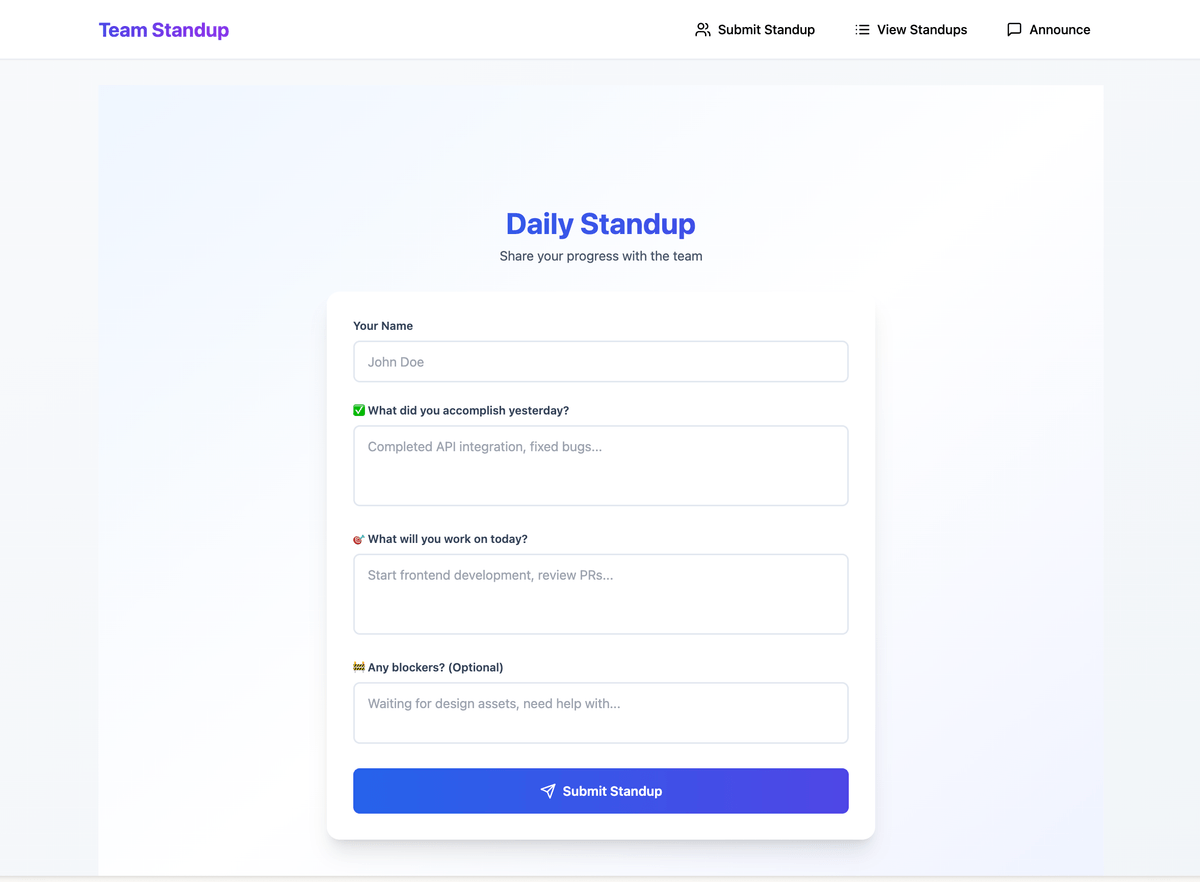
Build a team standup and announcement app with Slack integration.
Users submit yesterday/today/blockers.
Admins post announcements.
The backend sends formatted messages to a Slack channel.
Store standups and announcements in PostgreSQL.
Use server-side environment variables for Slack credentials.
Choose an integration mode
| Mode | Best for |
|---|---|
| Incoming webhook | Simple channel notifications. |
| Slack app with bot token | Richer messages, multiple channels, commands, and interactions. |
| Event subscriptions | Responding to Slack events or slash commands. |
Recommended environment variables
SLACK_WEBHOOK_URL=
SLACK_BOT_TOKEN=
SLACK_SIGNING_SECRET=
SLACK_DEFAULT_CHANNEL=
Only configure the variables your chosen mode needs.
Prompt Cocoding AI
Add Slack notifications when a new lead is created.
Use SLACK_WEBHOOK_URL on the server.
Let admins choose whether notifications are enabled.
Show notification delivery status in the lead activity panel.
Test Slack delivery
- Use a test Slack channel.
- Trigger one safe event from the Cocoding AI preview.
- Confirm the message appears in Slack.
- Confirm the app stores a success or failure status.
- If using interactions, verify the request signing secret.
Incoming webhook setup
For simple notifications:
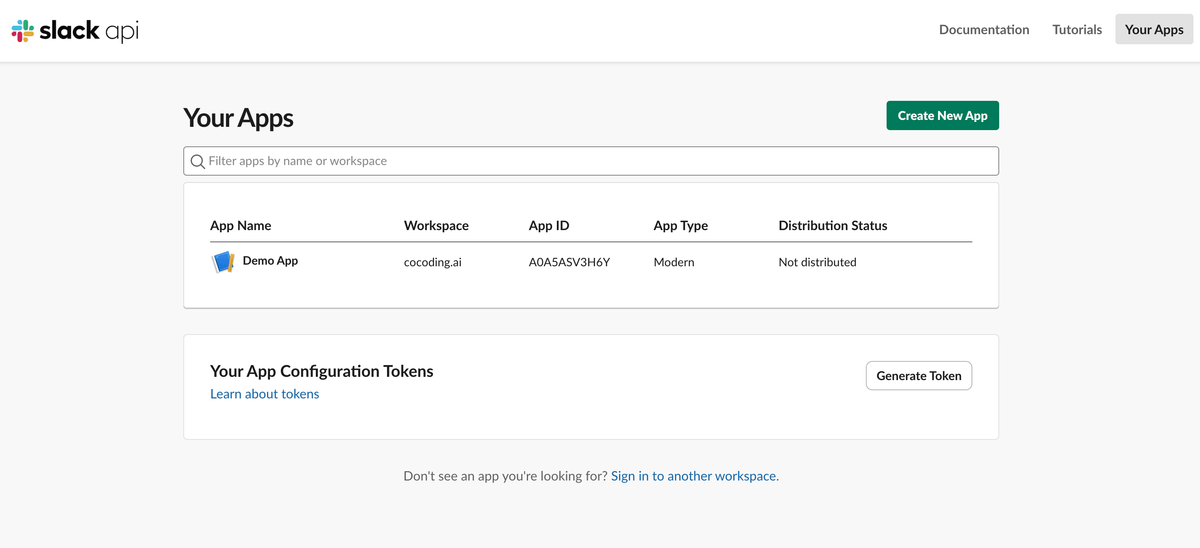
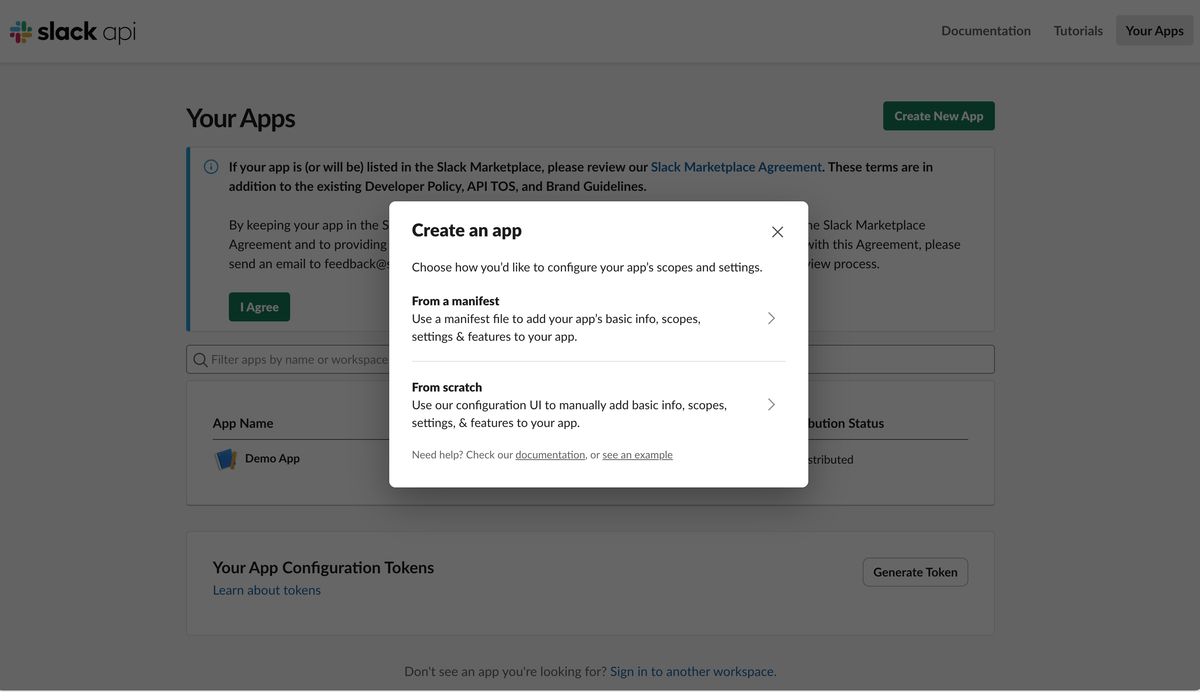
- Open Slack API app settings.
- Enable Incoming Webhooks.
- Add a webhook to a test workspace and channel.
- Store the webhook URL as
SLACK_WEBHOOK_URL. - Invite the app to the channel if Slack requires it.
- Trigger one test notification from preview.
Message design
Ask Cocoding AI to include enough context in each Slack message:
- Event name.
- User or record ID when safe.
- Status.
- Link back to the generated app.
- Failure reason if the notification was not sent.
Do not send private customer data into Slack unless your team has approved that workflow.
Troubleshooting
| Symptom | Likely cause | What to check |
|---|---|---|
| Message not sent | Webhook URL missing | Verify server-side configuration. |
| Slack returns forbidden | App missing channel access | Invite the Slack app to the channel. |
| Interactions fail | Signing secret mismatch | Recopy the Slack signing secret. |
| Wrong channel | Default channel mismatch | Update SLACK_DEFAULT_CHANNEL or the app setting. |