Terminal and output
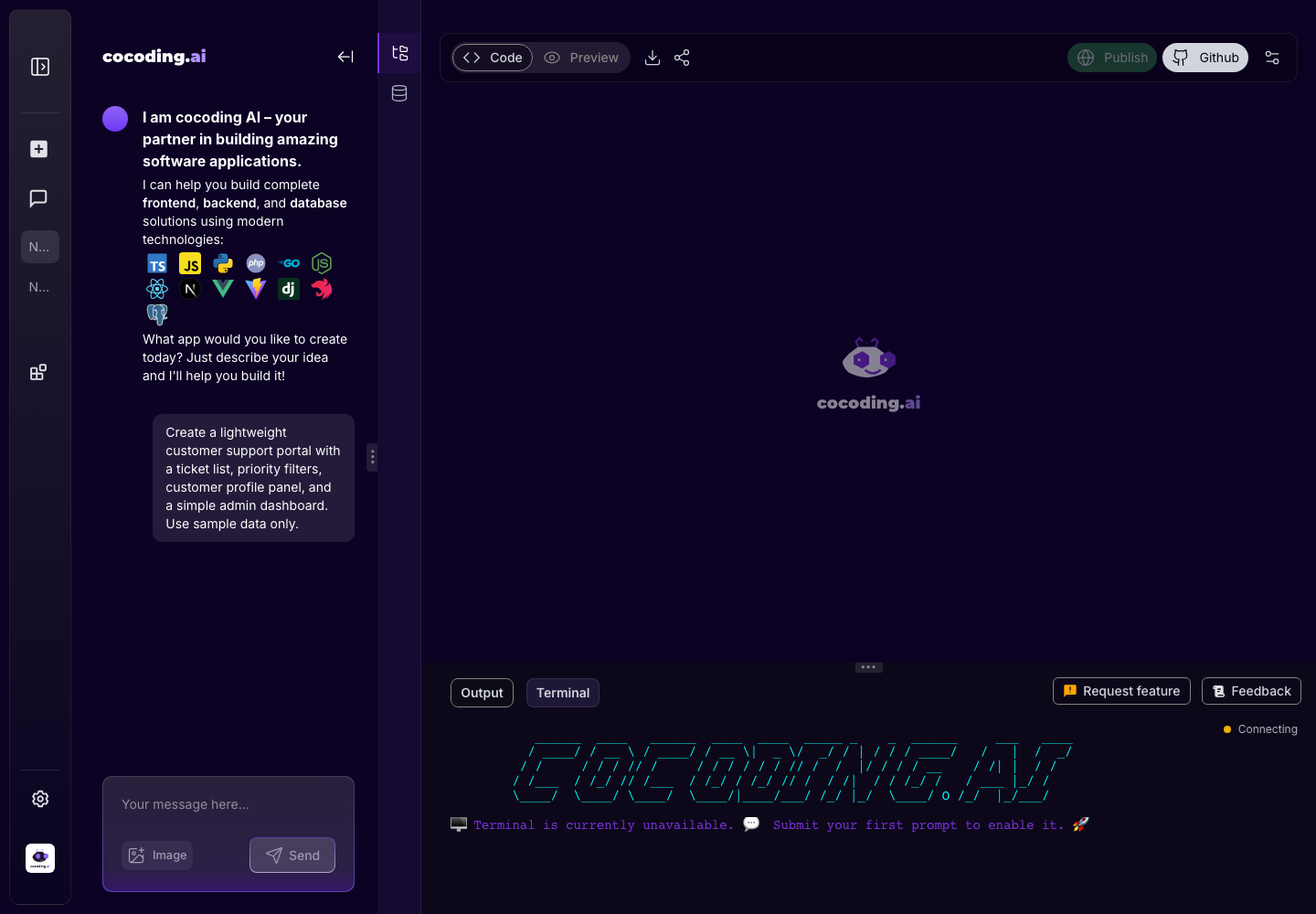
The terminal area shows output from the generated app environment when terminal tools are available.
What to look for
- Dependency install failures.
- Missing package messages.
- Framework build errors.
- Port or server startup messages.
- Database migration failures.
- Runtime exceptions.
Output vs terminal
The workspace can show an Output tab for generated logs and a Terminal tab for terminal interaction. Availability depends on project state, active file type, pod readiness, and account capabilities.
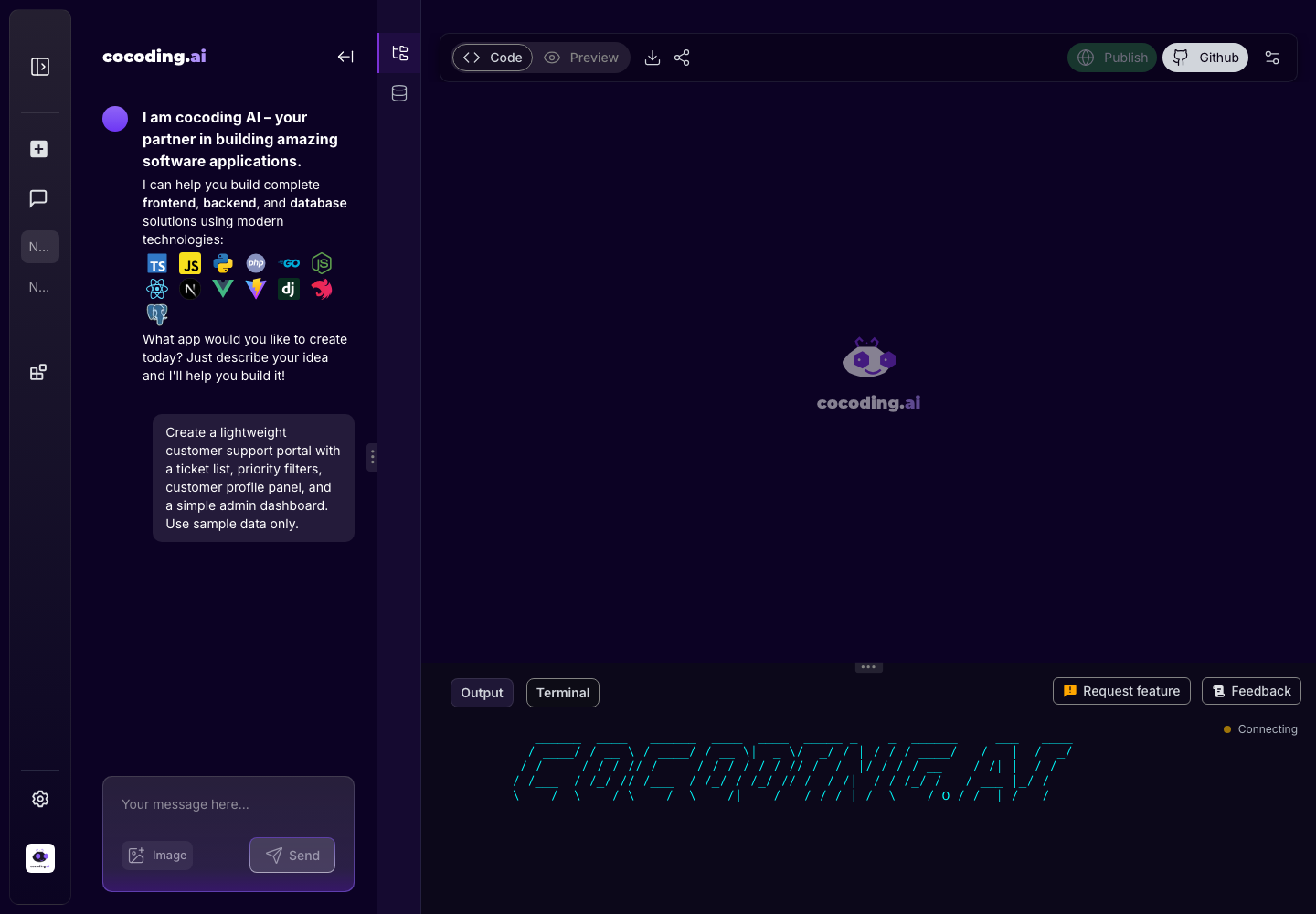
When terminal is hidden
The lower terminal panel is hidden in some states:
- You are in Preview mode.
- A special rendered file is active, such as Markdown, Mermaid, Draw.io, or a database tab.
- The generated runtime is not enabled yet.
- The project is still in its first planning or file generation phase.
Troubleshooting with terminal output
When the preview is blank or broken, copy the relevant error message into the assistant and ask for a targeted fix.
The preview fails with this terminal error:
[paste the relevant message]
Please fix the root cause and explain what changed.
Good terminal habits
- Copy only the relevant error block, not the entire terminal history.
- Do not paste private tokens, passwords, or production connection strings into chat.
- Ask for one fix at a time when the terminal shows multiple errors.
- Recheck Preview after the assistant applies a terminal-related fix.