Assistant workspace
The assistant workspace keeps project conversation and development controls in one screen.
Main areas
| Area | Purpose |
|---|---|
| Sidebar | Switch sessions, open project gallery, account settings, and navigation. |
| Chat panel | Send prompts, review assistant messages, and attach images. |
| Explorer | Inspect files or switch to database tools. |
| Main panel | Toggle code and preview, publish, share, download, or open GitHub actions. |
| Terminal | View output and runtime messages when terminal tools are available. |
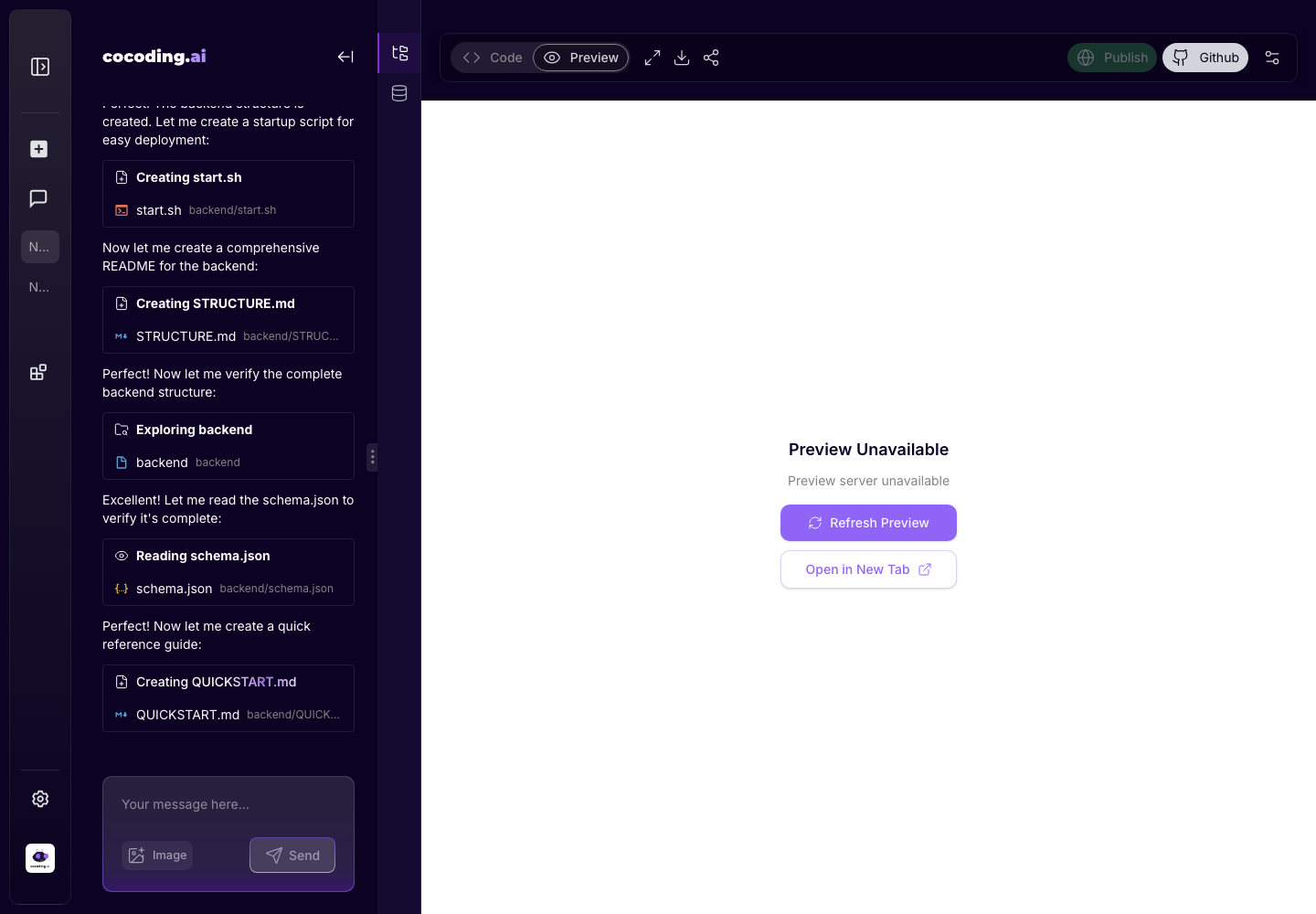
Inspect generated code
Use Code when you need to understand what the assistant generated. You can open files from the explorer, review generated README files, inspect backend routes, and ask the assistant for changes.
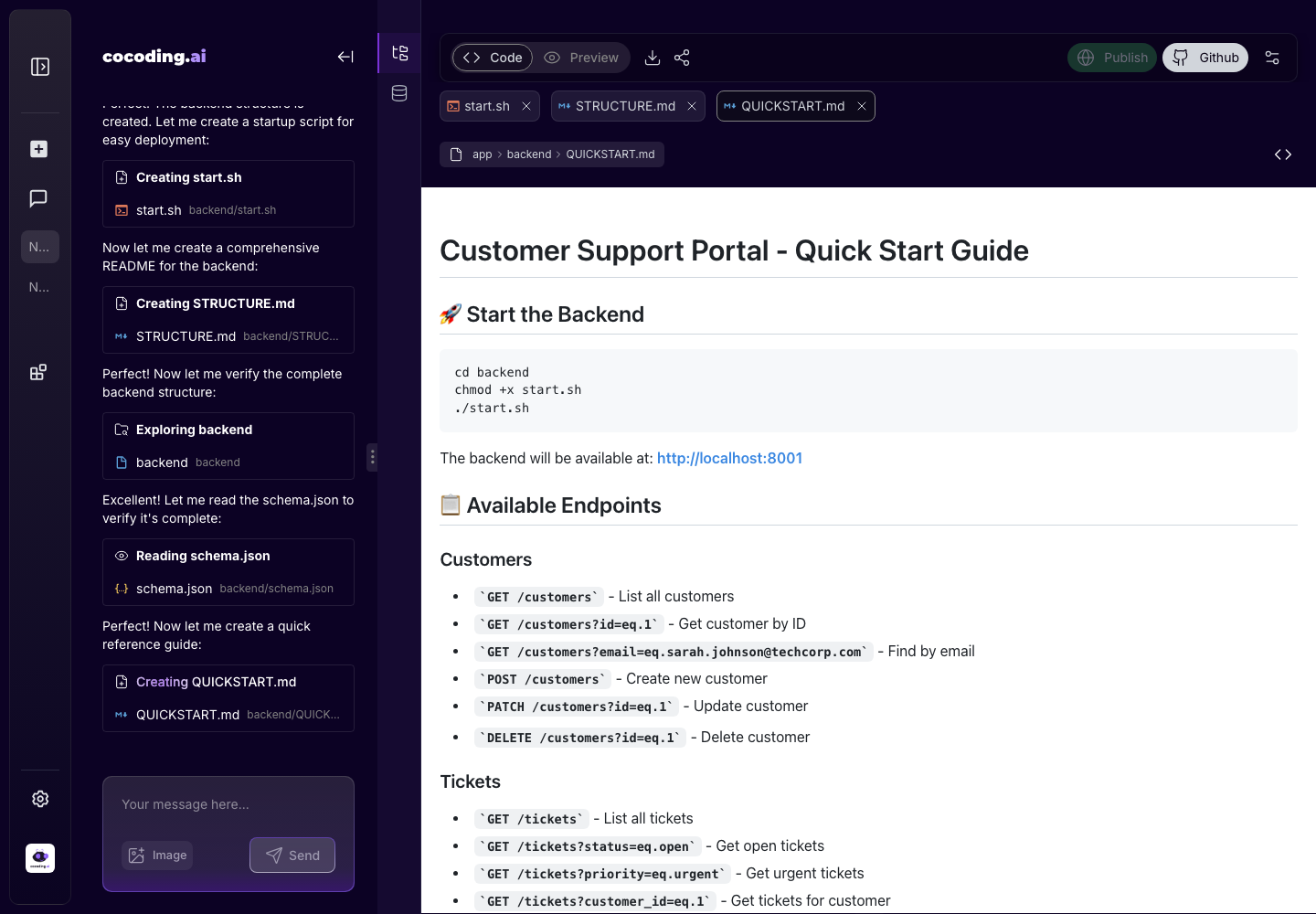
Test the preview
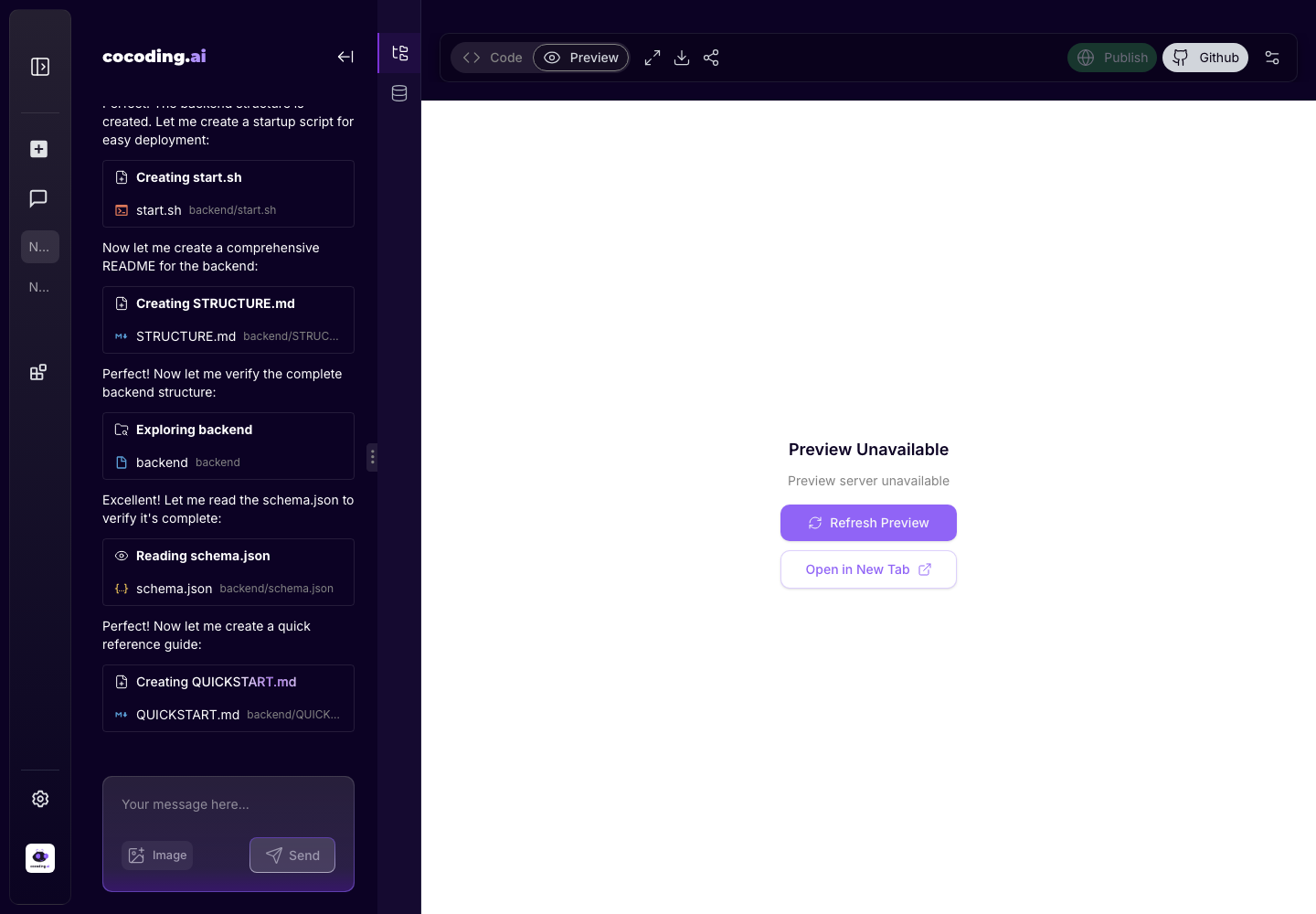
Use Preview after generation or after any major prompt. If the preview is unavailable, switch back to code and output to understand whether the app is still building or needs a fix.
Common actions
- Ask the assistant to add screens, database fields, business rules, or UI refinements.
- Switch to Code to inspect generated files.
- Switch to Preview to test the running app.
- Use the database explorer when the project needs persistent records.
- Publish or share when the preview is ready.
Service and project controls
The toolbar groups the service controls for the generated app:
- Code / Preview switches between implementation and runtime testing.
- Download exports the project when your plan allows downloads.
- Share opens sharing controls for preview links.
- Publish opens the hosted app when the preview is ready.
- GitHub is where Git integration actions are exposed.
- Project settings opens project-level options such as visibility and watermark controls.
Good workspace habits
- Make one change request at a time.
- Mention the exact page or component that should change.
- Confirm the preview after every major update.
- Keep database changes explicit, especially field names and relationships.
- When something fails, paste the exact output or preview error into the assistant and ask for a targeted fix.