Database explorer
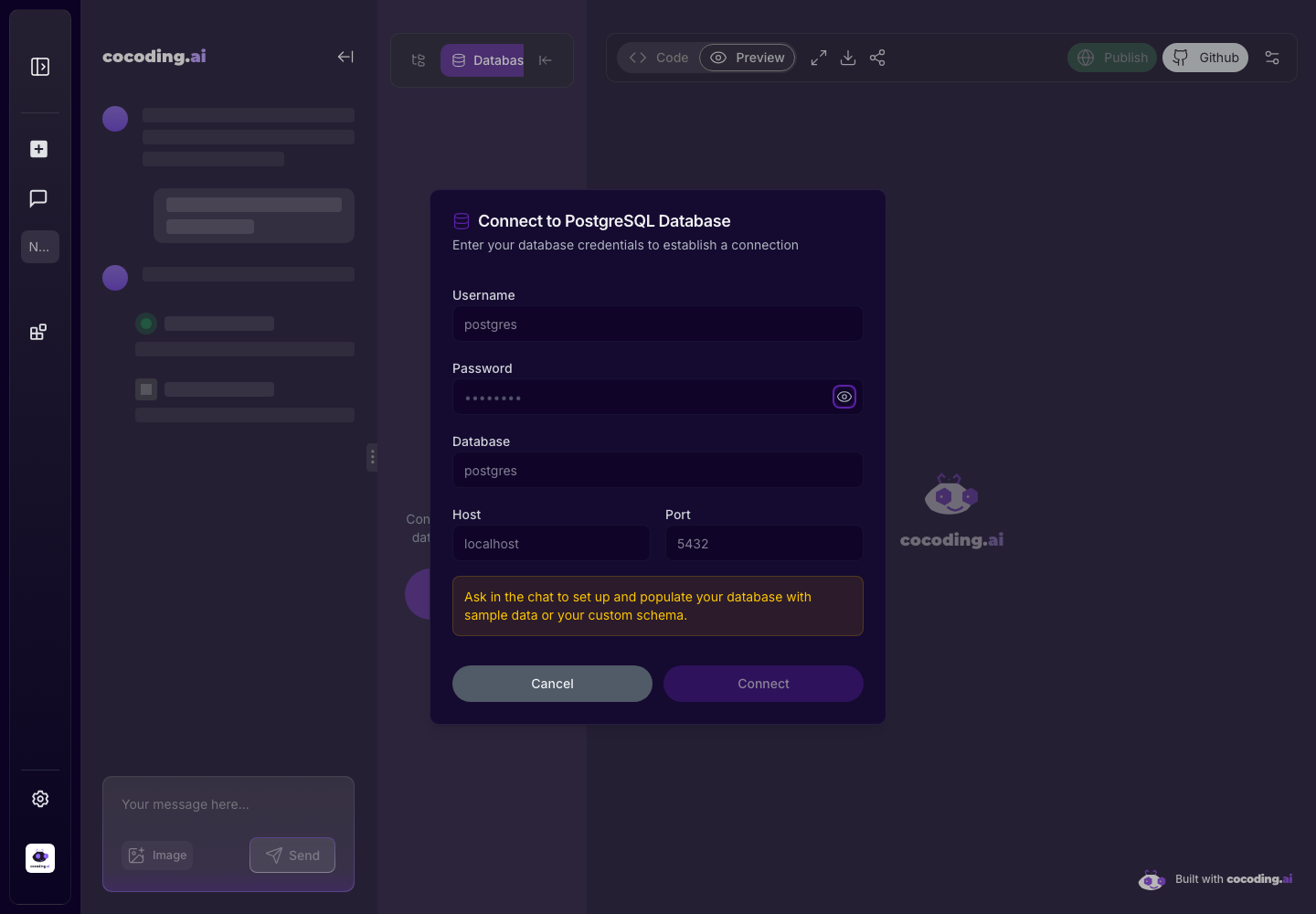
Use the database explorer when your generated app needs persistent data. The explorer supports PostgreSQL connection details, table browsing, query execution, and schema visualization.
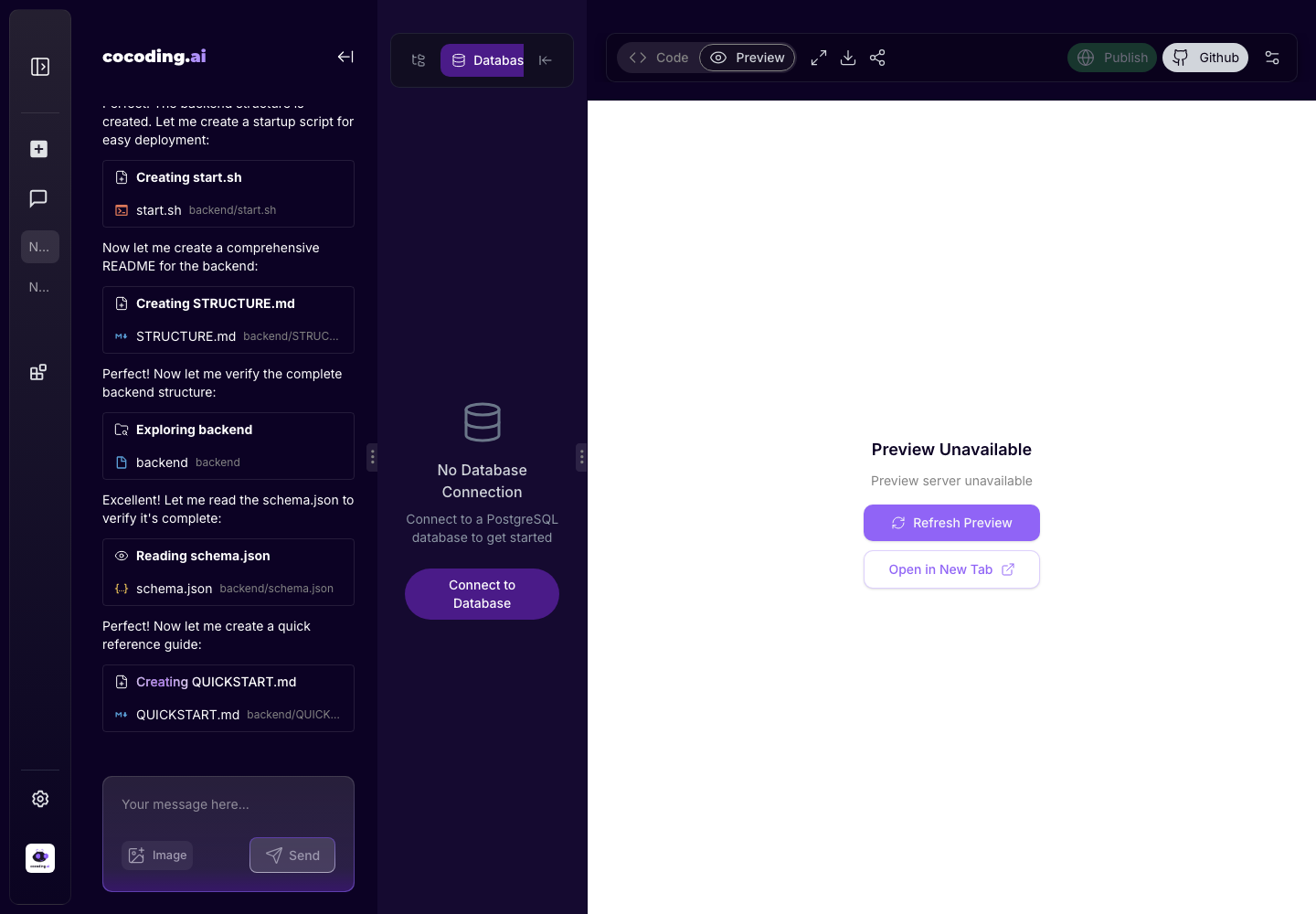
Connect to a database
- Open a project session.
- Select the database icon from the activity bar.
- Choose Connect to Database.
- Enter PostgreSQL host, port, database, username, and password.
- Confirm the connection.
Connection fields
| Field | Meaning |
|---|---|
| Username | The database user allowed to connect. Development examples often use postgres. |
| Password | The database password. Do not paste production passwords into chat or docs. |
| Database | The database name, such as postgres, app, or a project-specific name. |
| Host | The database host or service address. Use development databases while building. |
| Port | PostgreSQL usually uses 5432. |
If you do not know the connection values, ask Cocoding AI where the generated backend expects database configuration and use placeholder environment variables until the real runtime configuration is ready.
After connection
Once connected, use the database tools to:
- Browse tables and records.
- Open rows for detail inspection.
- Run safe read queries before changing data.
- Review generated schema and relationships.
- Ask the assistant to update schema, migrations, or seed data.
What to check first
- Table names match the product language in your prompt.
- Required fields exist, such as
status,created_at,user_id, orprice. - Relationships are represented with IDs or foreign keys.
- Sample records are safe test data.
- Sensitive fields are not stored in plain text unless they are intentionally non-secret.
Good database prompts
Ask the assistant to prepare the database when you need generated schema or sample data:
Set up a PostgreSQL schema for hotels, rooms, guests, bookings, and payments.
Add sample data for three hotels and ten bookings.
Security reminder
Do not paste production database passwords into public chat messages or screenshots. Use the connection form and rotate credentials if they are exposed.