Project services and settings
Use this page when you are inside a generated project and need to understand which part of the app you are editing, testing, or preparing to publish.
Workspace service controls
The project workspace brings the generated app, assistant, code, preview, database tools, output, and project actions into one screen. Treat the toolbar as the control area for the active service.
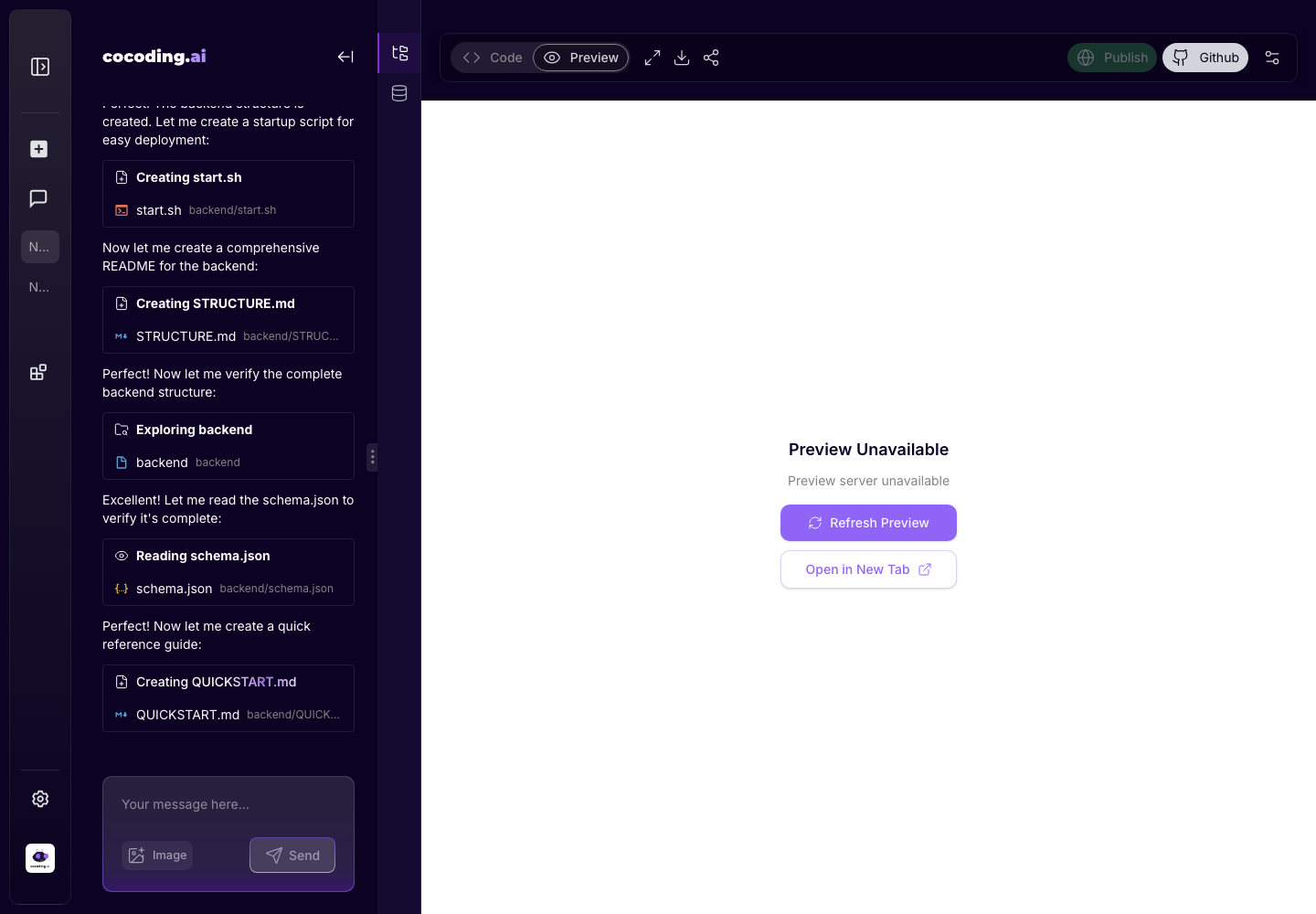
Choose the right view
| View | Use it for |
|---|---|
| Chat | Ask for new features, fixes, copy changes, design changes, and integration work. |
| Code | Inspect generated files, understand implementation, and confirm what changed. |
| Preview | Test the app as a user before sharing or publishing. |
| Database | Review tables, records, query behavior, and schema changes. |
| Output and terminal | Diagnose build, runtime, dependency, and startup errors. |
| Publish and share | Prepare a public or shareable version after the preview is healthy. |
Project settings
Project settings apply to the current generated app, not to your whole account. Open project-level settings from the workspace toolbar when you need to review options such as:
- Project name and metadata.
- Visibility and sharing behavior.
- Watermark or branding options when available for the plan.
- Publish readiness.
- Project-specific controls that should not affect other apps.
Do not store API keys, OAuth client secrets, payment keys, database passwords, or customer data in project names, descriptions, screenshots, or prompts.
Track plan and budget impact
Some actions can depend on plan capabilities, credits, or account limits. If a project action is unavailable, review:
- Current plan.
- Remaining monthly credits.
- Active project limits.
- Runtime capacity.
- Download, GitHub, publish, or premium feature availability.
Open Billing and plans when you need to upgrade, adjust credits, or understand why an action is disabled.
Prepare to publish
Before using publish or share controls, confirm the app works in preview and has no obvious placeholder data.
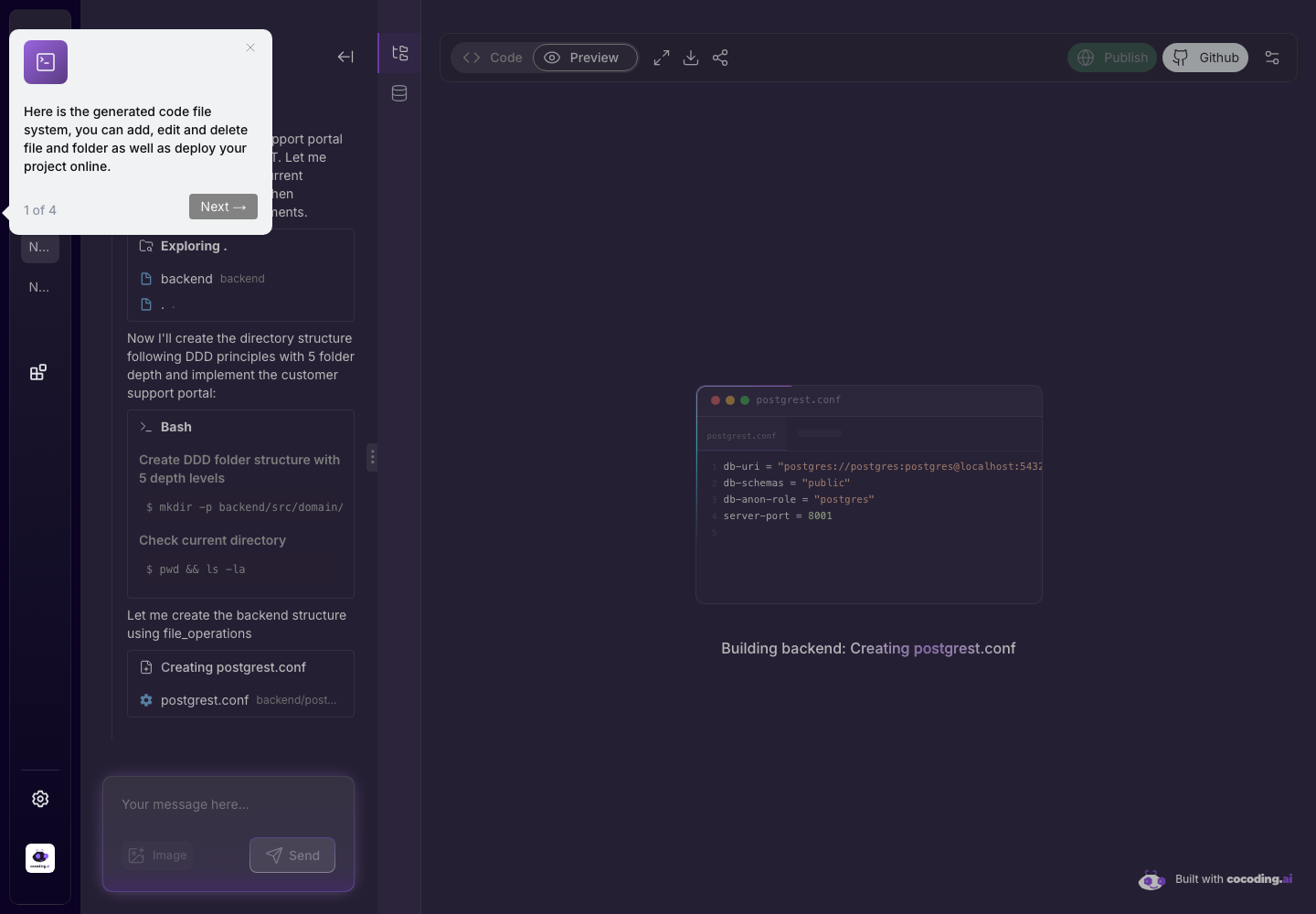
If a control is disabled
- Wait for the assistant to finish generation.
- Open output or terminal to check whether the runtime is still starting.
- Confirm the preview is available.
- Review billing and plan capabilities.
- Ask the assistant to fix any visible build or runtime error before publishing.