Quick tour
The assistant may show a quick tour for new users. Use it to learn where prompt input, image upload, generated projects, settings, and the workspace panels live.
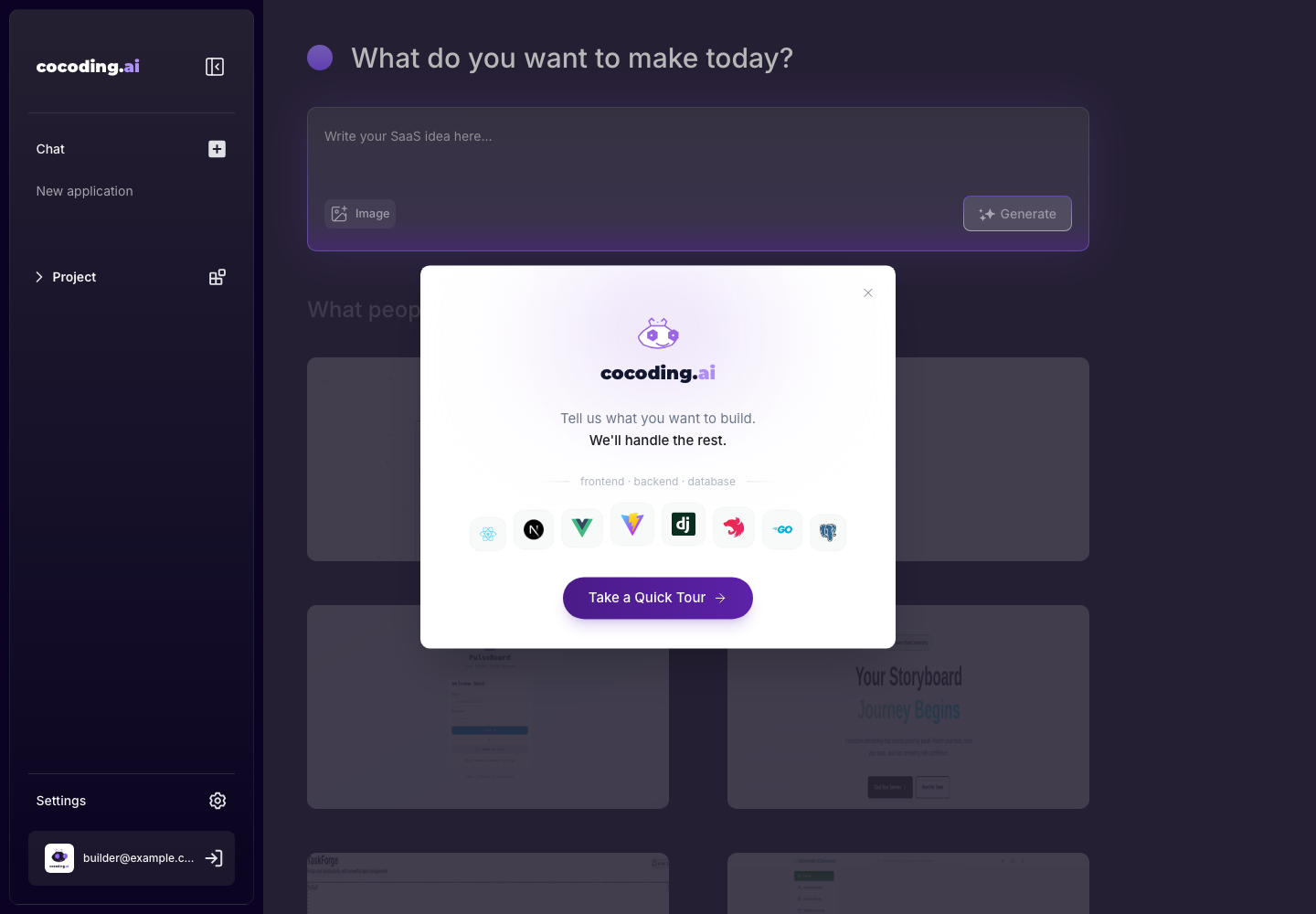
What to notice
- The prompt box is the main place to describe the app.
- Image lets you attach screenshots, sketches, or references.
- Generate starts the build from the current prompt.
- The sidebar contains chat sessions, project gallery access, settings, and account controls.
- The quick tour can be closed when you are ready to work directly.
Dashboard areas
| Area | What it does |
|---|---|
| Chat | Start a new app, continue an existing session, and ask Cocoding AI for edits. |
| Project | Browse generated projects and return to previous work. |
| Settings | Manage account, billing, feedback, labs, and support options. |
| Prompt composer | Describe the product, attach references, and start generation. |
| Example gallery | Review generated products for prompt and layout inspiration. |
Supported app types
Cocoding AI can generate apps across common full-stack patterns. A first prompt can mention frontend preferences such as React, Next.js, or Vue, backend preferences such as NestJS, Django, or Go, and database needs such as PostgreSQL or Supabase. If you do not have a stack preference, describe the product workflow and let Cocoding AI choose a practical starting point.
When to use image context
Use Image when you have:
- A screenshot of a product you want to approximate.
- A hand-drawn wireframe.
- A brand reference.
- A dashboard layout.
- A form or table example.
Images work best when you also describe what matters about the reference, such as "use this layout, but change the data model to invoices and customers."