Sign in
Use this page when you need access to the Cocoding AI builder.
Open the auth page
Go to Cocoding AI and choose Login or Get Started. The sign-in screen supports email and social login options when they are enabled for your account.

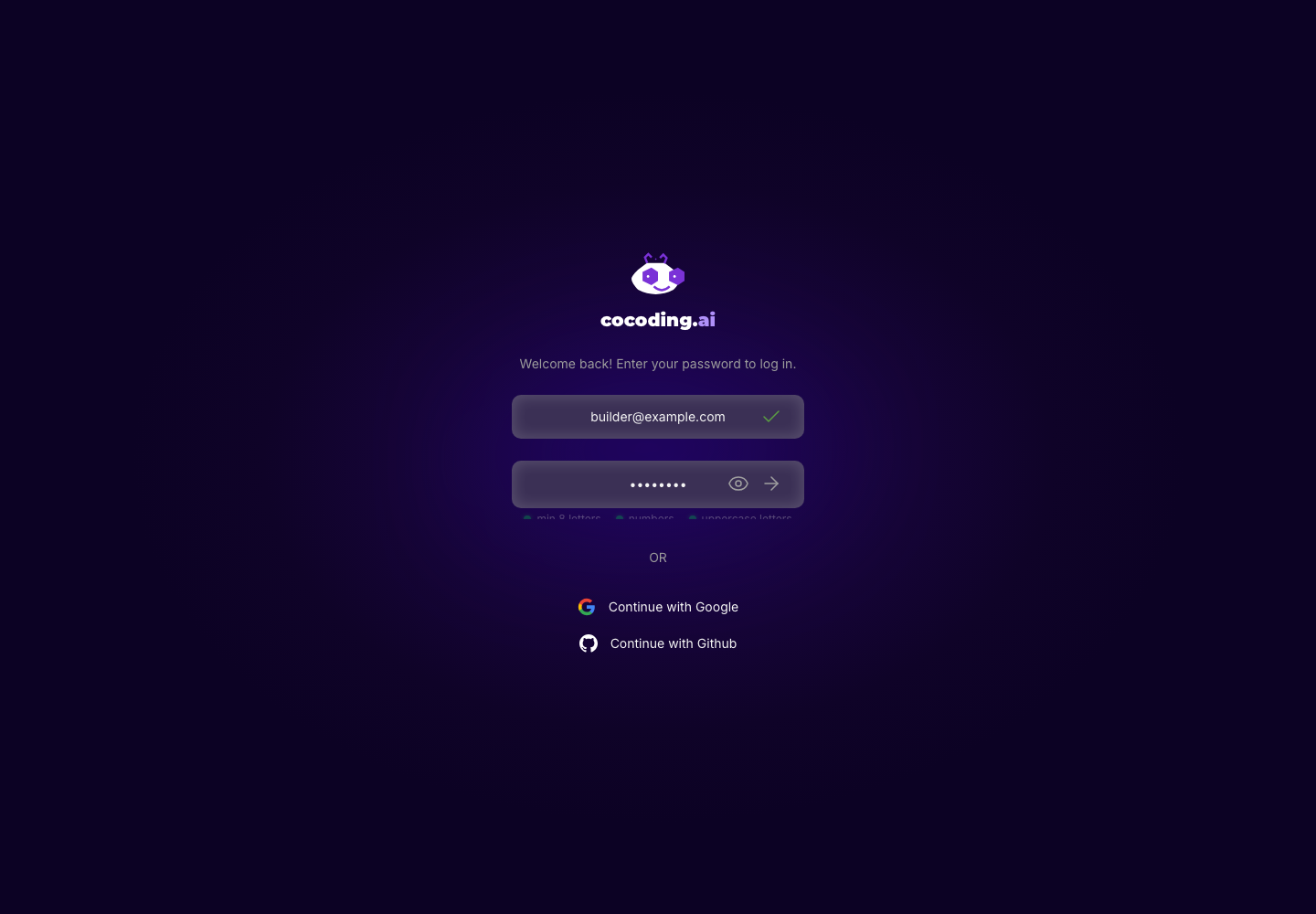
Sign in with email
- Enter your email address.
- Submit the email field with the arrow button.
- If the account already exists, enter your password.
- Submit the password step.
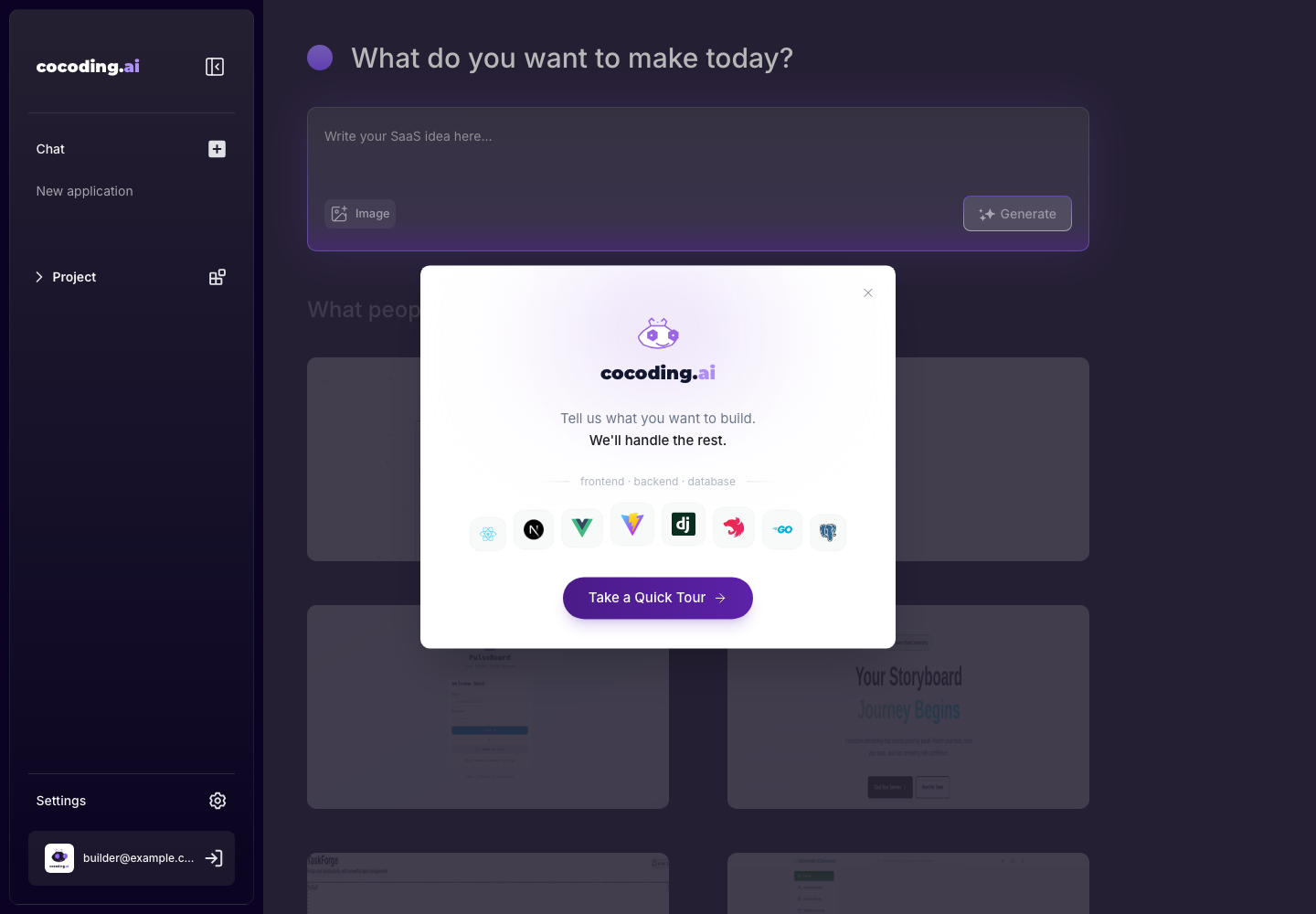
- After a successful sign-in, Cocoding AI opens the assistant.
Register with email
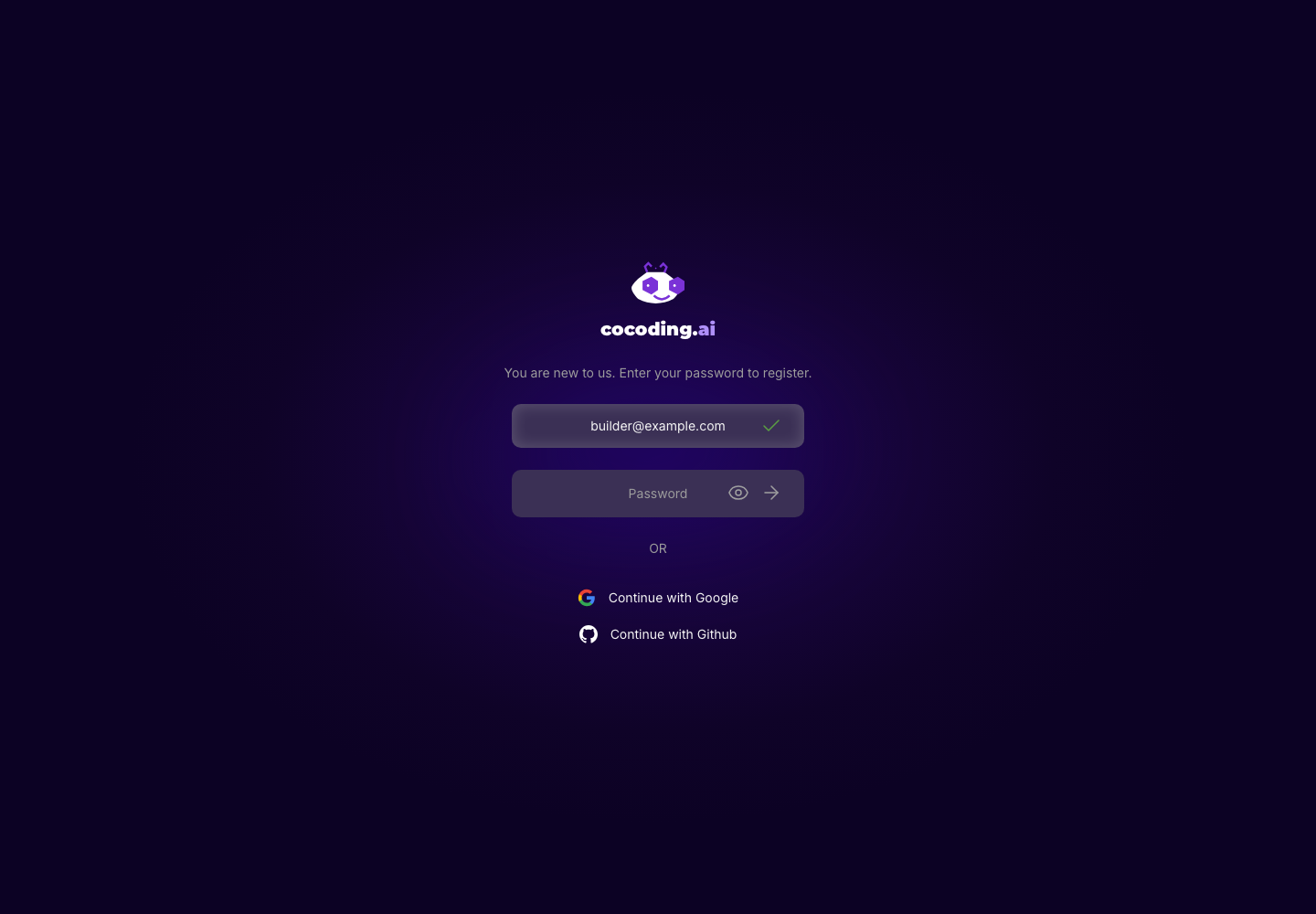
- Enter a new email address.
- Submit the email field.
- When the registration password step appears, create a password that satisfies the visible password rules.
- Submit the form.
- If email verification is enabled for your account, complete the verification email before building.
Sign in with a social provider
If Google or GitHub is visible, choose the provider and finish the provider authorization flow. Return to Cocoding AI after authorization. Use the same provider the next time you sign in so the account maps to the same identity.
Expected result
You should land on the assistant page where you can write a SaaS idea, attach images, and start a project.
If sign-in fails
- Confirm that the email address is typed correctly.
- If the password step appears, use the password for that Cocoding AI account or choose Forgot password?.
- If the account requires verification, complete the email activation step before trying again.
- If social login returns an invalid credentials message, try email login and contact support with the provider name and time of the attempt.
- If the auth page shows a provider error, wait a few minutes and retry. Provider outages and callback configuration issues usually affect only that social provider.