Notion
Use Notion when your app needs to read or update docs, CRM notes, task lists, content calendars, or lightweight operational databases.
What to build with Cocoding AI
Ask for the user workflow first, then mention Notion as the external system.
Create a client onboarding dashboard.
Store onboarding tasks in a Notion database.
Use environment variables for the Notion credentials.
Show sync status and clear errors when Notion is not configured.
Prepare Notion
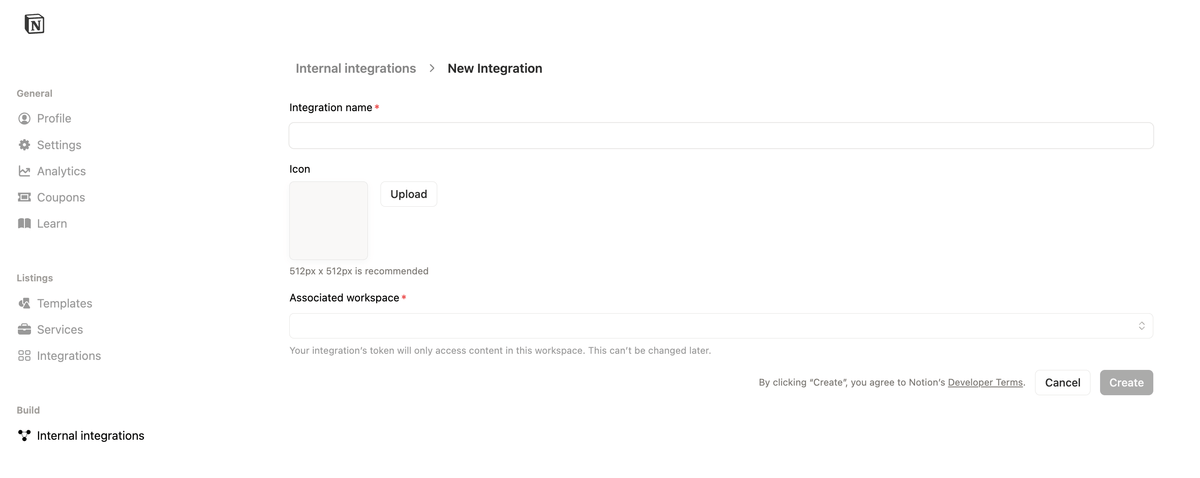
- Open the Notion integrations settings.
- Create an internal integration or OAuth integration for the workspace.
- Give the integration only the capabilities the app needs, such as read content, update content, or insert content.
- Share the target page or database with the integration.
- Copy the database ID or page ID you want the app to use.
- Store the integration secret in your approved runtime configuration, not in generated client code.
Recommended environment variables
NOTION_TOKEN=
NOTION_DATABASE_ID=
Ask Cocoding AI to wire it
Give Cocoding AI the table fields and sync direction, but do not paste the real token into chat.
Wire the onboarding task list to Notion.
Use NOTION_TOKEN and NOTION_DATABASE_ID on the server.
Map fields: title, assignee, due date, status, notes.
If the environment variables are missing, show an admin setup message.
Test the integration
- Create a test row in Notion.
- Refresh the Cocoding AI preview.
- Confirm the row appears in the app.
- Update one safe test field from the app.
- Confirm Notion receives the update.
Troubleshooting
| Symptom | Likely cause | What to check |
|---|---|---|
| Empty list | Database is not shared with the integration | Share the database with the Notion integration. |
| Permission error | Missing capability | Add the required read, update, or insert capability. |
| Wrong fields | Database property names do not match the prompt | Ask Cocoding AI to update the field mapping. |
| Token error | Secret missing or pasted in the wrong place | Store NOTION_TOKEN server-side and restart the app. |